
Team marking up paper wireframes on a table

Software & Tools

Shopify Flow Examples: 12 Automations Every Store Should Use

Twelve practical Shopify Flow examples for UK stores: risky orders, low stock, VIP tags, returns and more. Save hours of admin. Read the guide and start.

In this article (5 sections)
  1. How Shopify Flow works
  2. Shopify Flow examples for orders and fraud
  3. Shopify Flow examples for stock and products
  4. Shopify Flow examples for customers and returns
  5. Building your first workflow

Key takeaways

  • Shopify Flow is Shopify's own free automation app. Every workflow follows the same pattern of trigger, condition and action, so once your team understands one automation, building the next takes minutes rather than a developer's afternoon, and nobody needs to write code for the common jobs. Templates make the first steps even quicker.
  • The best Shopify Flow examples remove repetitive admin rather than adding clever extras. Flagging risky orders, alerting buyers about low stock, hiding sold-out products and tagging VIP customers are simple wins that save time every single day and reduce costly human error. Each one is simple to build and easy to explain to the team.
  • Tags are the glue between Flow and the rest of your stack. A customer or order tag added by Flow can drive a Klaviyo segment, a helpdesk view in Gorgias or a picking rule in the warehouse, so plan a clear, documented tag naming scheme before you build anything. Tags also make reporting easier.
  • Start from Shopify's template library, test every workflow on a small scale and name each one clearly with its purpose and owner. A tidy list of documented automations is far easier to maintain and troubleshoot than dozens of mystery workflows nobody remembers creating.
  • Review your workflows at least quarterly. Products, policies, carriers and apps change, and an automation built for last year's catalogue or delivery rules can quietly start doing the wrong thing at scale, which is far harder to unpick than a single manual mistake. A short review keeps everything accurate.

Every Shopify store has jobs that someone does by hand, every day, that software could do better: tagging orders, checking stock, chasing suspicious purchases, tidying up sold-out products. That is exactly the work shopify flow was built for, and it comes free from Shopify. Below are twelve Shopify Flow examples we recommend for UK stores, grouped by the team they help, with notes on how each one works so you can build or adapt it yourself without writing code.

How Shopify Flow works

Each workflow has three parts. A trigger starts it, such as an order being created or stock changing. A condition checks whether it should continue, for example whether the order total is above a set amount or the shipping address is in a particular region. An action does the work, such as adding a tag, sending an internal email or posting a message to Slack. Many popular apps, including Klaviyo, add their own triggers and actions, so Flow can connect tools that would otherwise ignore each other. Workflows run in the background around the clock, including weekends and bank holidays when nobody is watching the admin.
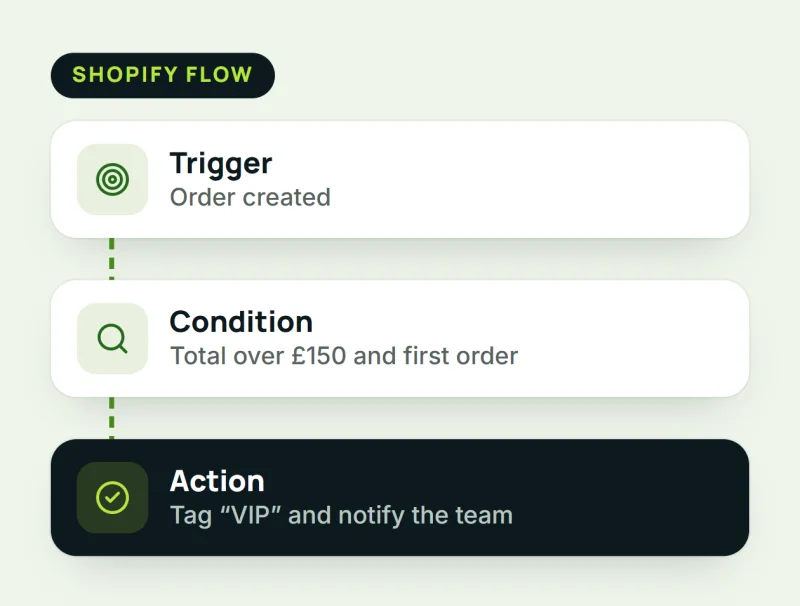
Illustration of a Shopify Flow automation with a trigger, a condition and an action

Shopify Flow examples for orders and fraud

  • 1. Flag high-risk orders. When Shopify's fraud analysis marks an order as high risk, tag it and email your team before anyone picks it, so a person reviews it first.
  • 2. Tag first-time buyers. Tag first orders so the warehouse can add a welcome card or sample, and so marketing can track new customer cohorts.
  • 3. Route orders by destination. Tag orders for Northern Ireland, the Channel Islands or the Scottish Highlands and islands, so your team applies the right courier service and any customs paperwork.
  • 4. Catch unusually large orders. Flag orders above a quantity you set for one product, which can point to a reseller or a pricing error worth checking before dispatch.
  • 5. Highlight gift orders. Tag orders containing a gift note or gift wrap so packers never miss the personal touch, especially in the run-up to Christmas.

Shopify Flow examples for stock and products

  • 6. Send low-stock alerts. When inventory for a best seller drops below your reorder point, alert the buying team by email or Slack, with the product and current quantity in the message.
  • 7. Hide sold-out products. Unpublish products when stock reaches zero and republish them when it returns, so collections never fill up with dead ends.
  • 8. Check product data weekly. Use a scheduled trigger to find products missing images, barcodes or descriptions and send the list to your merchandiser.
  • 9. Separate pre-orders. When an order includes a product tagged as a pre-order, tag the order so the warehouse holds or splits it rather than shipping half a parcel.

Hand holding a phone with a shopping app open above a laptop keyboard

Shopify Flow examples for customers and returns

  • 10. Tag VIP customers. When lifetime spend or order count passes a level you choose, tag the customer so Klaviyo and your helpdesk can treat them accordingly.
  • 11. Route trade sign-ups. When a new customer arrives through your trade form with a wholesale tag, alert your sales team to review and approve the account.
  • 12. Track refunds. When a refund is issued, tag the order and the customer, so your service team can spot repeat returners and review sizing advice for the products involved.

Building your first workflow

Start with a template from the Flow library, adjust the conditions to suit your store and give the workflow a clear name that says what it does. Test with a handful of real or test orders, check the result, then let it run. Keep a simple register of every workflow, its purpose and its owner, and review it whenever your catalogue, carriers or apps change. Rules-based automation handles predictable work well; for tasks that need judgement, such as answering customer questions, see AI for Shopify Stores for where AI tools can take over from fixed rules.

Shopify Flow tips before you build

  • Agree a tag naming scheme

    Tags are only useful if everyone reads them the same way. Agree a simple format, such as “flow-vip” or “flow-risk-review”, write it down and share it with marketing, service and the warehouse. Consistent tags make segments, reports and helpdesk views far easier to build and trust. Avoid vague tags such as “check” that mean different things to different people.

  • Start from a template

    Shopify's Flow template library covers many common jobs, from fraud checks to stock alerts. Starting from a template saves time and shows you how triggers, conditions and actions fit together, so you can adapt it with confidence rather than building everything from a blank canvas. Rename every template once you adapt it so its purpose stays obvious.

  • Test small, then scale

    Run new workflows against a small set of test orders or a single product before letting them loose on the whole catalogue. An automation that hides products or tags customers can make hundreds of changes in minutes, so check the first results carefully before relying on it. Keep a note of what each test showed.

  • Watch for clashes with other apps

    If another app also tags orders, edits inventory or publishes products, two automations can fight each other. List what each app changes, avoid duplicate logic and check the Flow run history regularly for errors, skipped runs or loops that keep repeating the same action. Fix clashes at the source rather than adding another workflow to patch them.

When rules-based automation is not enoughAI Agents for Shopify

FAQs

Shopify Flow FAQs

Straight answers before you get in touch. More in our FAQs.

Is Shopify Flow free?

Flow is a free app from Shopify, available to merchants on Shopify's main subscription plans. Some features and connectors can differ by plan, and third-party apps that connect to Flow may have their own charges. Before designing a workflow, confirm what your current plan includes on the Flow app listing or in Shopify's help documentation.

Do I need a developer to use Shopify Flow?

Not for most workflows. Flow uses a visual editor, and templates cover many common jobs. A developer becomes useful when you need advanced logic, custom data in metafields or connections to systems outside Shopify, such as an ERP or warehouse platform. Many stores start in-house and bring in specialist help once workflows become business-critical. Either way, document what you build.

Can Flow send emails to customers?

Flow's email action is designed for internal alerts to your team rather than customer marketing. Customer-facing messages are better handled by Shopify Email or Klaviyo, which have the right consent handling, design tools and reporting. Flow can still play a part by adding tags or passing events that those platforms use to trigger the right message. Keep the roles of each tool clear.

How is Shopify Flow different from Zapier?

Flow is built into Shopify, so it reacts to store events such as orders, customers and inventory with very little setup. Zapier connects a much wider range of non-Shopify tools, which helps when your processes span many systems. Many stores use Flow for anything inside Shopify and add another integration tool only when a workflow genuinely needs it.

Can Flow connect to tools such as Slack?

Yes. Flow includes actions for popular tools such as Slack, so you can post alerts straight to a team channel, and connectors for many other apps and services are available too. The list changes as Shopify and app developers add new connectors, so browse the connectors section inside Flow to see what your store can use today before planning a workflow around one.

How many Flow workflows should a store run?

As many as you can maintain properly. A small store might run five or six well-documented workflows, while a larger operation runs many more. The important thing is that each one has a clear purpose, a named owner and a place in your workflow register, so nobody is surprised when an order gains a tag or a product disappears.

What can go wrong with Flow automations?

The common problems are workflows that trigger each other in a loop, conditions that are too broad and automations that clash with apps making similar changes. Because Flow acts at scale, a mistake can affect hundreds of products or orders quickly. Test on a small sample, check the run history and review every workflow after major catalogue or process changes.

What does SAL charge for Shopify Flow automation work?

We price Flow work through our Apps Integration & Consulting packages, charged once and quoted ex VAT. If Flow is your only tool, Starter from £495 covers configuration, connection and a team walkthrough. Growth from £1,495 suits a wider programme of up to four tools, with automations and training included. Anything larger gets its own fixed quote after a scoping call.

Want Shopify Flow set up properly for your store?

Tell us which manual jobs eat your team's time and a specialist lead will design, build and thoroughly test the Shopify Flow automations that remove them, connect them to the apps you already use, document every workflow and train your staff to manage them, all for a fixed fee, with every workflow peer-reviewed before go-live and a weekly status note from your project manager.

Get a quote Call WhatsApp (opens in new tab)