Screenshot of an app marketplace page listing popular apps for merchants

Shopify Development

Shopify POS for UK Retail Stores: A Practical Guide

Plan Shopify POS for your UK shop: hardware, payments, stock sync, staff and click and collect explained. Read the guide and get a fixed-price quote.

In this article (6 sections)
  1. What Shopify POS actually does
  2. POS Lite or POS Pro?
  3. Hardware and payments for UK shops
  4. Getting stock and staff ready
  5. Omnichannel features worth switching on
  6. Plan your Shopify POS launch like a project

Key takeaways

  • Shopify POS turns your shop counter into one more channel of the same store. Products, prices, stock and customer profiles live in a single admin, so a sale in your Brighton boutique updates the stock your online shoppers see, and nobody has to reconcile two separate systems at the end of a long trading day.
  • Pick your POS level by how you actually trade. POS Lite comes with Shopify plans and suits markets, pop-ups and occasional in-person selling, while POS Pro is a paid upgrade per location aimed at permanent shops that need deeper staff controls and inventory tools. Check Shopify's website for current features and fees.
  • Hardware choices are payment choices. Shopify's own card readers work with Shopify Payments, so confirm your payments set-up, VAT settings and receipt details before ordering any kit. Then add only what your counter genuinely needs, whether that is a stand, a receipt printer, a barcode scanner or a cash drawer.
  • Clean product data matters even more in store than online. Barcodes, variants, locations and stock counts must be accurate before opening day, or staff end up guessing at the till while a queue builds. Import, label and count everything before go-live, then rehearse with real products and real payments.
  • Omnichannel features are where POS really earns its keep. Click and collect, shipping from the shop floor, cross-channel returns and shared customer profiles turn a single visit into a lasting relationship, and give your team a way to rescue the sale when the right size or colour is not on the rail.

Plenty of UK brands start online and then open a door on the high street: a pop-up near Spitalfields, a stall at a Christmas market, a permanent shop in Manchester's Northern Quarter. The moment you sell face to face, you need a till that talks to your website. That is the job of shopify pos, Shopify's own point-of-sale app. This guide covers what to plan before your first in-person sale.

What Shopify POS actually does

Shopify POS runs as an app on supported iPad, iPhone and Android devices and connects directly to your Shopify admin. Products, prices, discounts, customers and orders are shared with your online store, so you manage one catalogue rather than two. Each shop, stall or stockroom is set up as a location with its own stock levels, which lets staff check availability elsewhere and lets you compare channels side by side.

That flexibility suits a wide range of UK retail: a homeware brand testing a seasonal pop-up in Edinburgh, a coffee roaster selling beans at a farmers' market, or a fashion label running a flagship shop alongside its website. If you already trade online with Shopify, adding in-person selling is usually far simpler than running a separate till system.

POS Lite or POS Pro?

POS Lite is included with Shopify plans and covers the essentials: taking payments, managing orders and products, and recording customer details. It suits pop-ups, markets and brands that sell in person now and then. POS Pro is a paid upgrade charged per location and built for permanent shops, adding features such as granular staff roles and permissions, smarter inventory tools and in-store reporting. Features and fees change, so confirm the current UK details on Shopify's website before you budget.
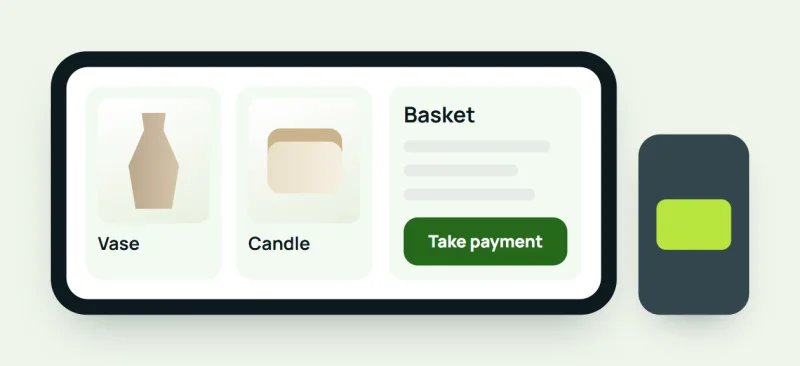
Illustration of Shopify POS on a tablet with a basket and a card reader for in-store sales

Hardware and payments for UK shops

  • Card reader: Shopify's readers take chip and PIN and contactless payments, including mobile wallets, and work alongside Shopify Payments.
  • Tablet and stand: a secure stand keeps the counter tidy and makes it easy to turn the screen towards customers.
  • Receipt printer and barcode scanner: worthwhile for busy shops, optional for a weekend stall where emailed receipts may be enough.
  • Cash drawer: only if you still take cash, with float and end-of-day counts set up in the app.

Buy kit from Shopify's hardware store or a supplier that confirms compatibility, and check that your VAT number and business details print correctly on receipts.

Getting stock and staff ready

Inventory

Give every variant a barcode or SKU, assign stock to the right location and complete a full count before opening. If you also hold stock in a warehouse or with a 3PL, decide which location fulfils online orders and how transfers are recorded.
Laptop showing a website template gallery on a desk

Staff

Create a staff account for each team member, with a PIN and only the permissions their role needs. Decide who can give discounts, process refunds or open the cash drawer, then train everyone on returns, exchanges and what to do if the Wi-Fi drops. A mobile hotspot is cheap insurance at markets and events.

Omnichannel features worth switching on

  • Buy online, collect in store: convenient for local shoppers and a reason to visit.
  • Ship to customer: sell an item the shop has run out of and send it from your warehouse.
  • Cross-channel returns: let online customers return or exchange at the counter.
  • Unified customer profiles: see online and in-store history together for loyalty and email marketing.

Plan your Shopify POS launch like a project

Treat POS as a project, not an app install. Map products, locations, payments and staff roles, test every payment type with real cards and rehearse a busy Saturday before opening. Once you are trading, your in-store data can work harder too; our guide to AI for Shopify Stores shows where automation helps with reporting, product content and customer service across both channels.

At Shopify Agency London we set up POS with the same corporate-grade process as any build: a dedicated project manager, specialist leads, QA with 4-eyes review and a go-live checklist, so your first day of in-store trading feels routine rather than risky.


Tips for your first in-store trading day

  • Rehearse a full trading day

    Before opening, run a mock day with real products: ring up full-price sales, discounted items, a split payment, an exchange and a refund. Close the till at the end and check the totals against your Shopify reports. Problems found in rehearsal cost nothing, while the same problems during a Saturday rush cost sales, goodwill and staff confidence on the day it matters most.

  • Label stock before it reaches the shop floor

    Print barcode labels and tag every item before it goes on display. Scanning is faster and more accurate than searching by product name, especially for fashion ranges with many sizes and colours, and it keeps per-location stock counts reliable for your online store as well as the shop. Agree a simple labelling routine for new deliveries so the habit sticks.

  • Capture customers at the till, with consent

    Offer shoppers an emailed receipt and the chance to join your mailing list, and record marketing consent properly under UK GDPR. A unified profile lets you thank in-store buyers by email and suggest products later, turning a one-off visit into repeat revenue across both channels. Keep the sign-up quick, so the queue keeps moving at busy times.

  • Review in-store reports every week

    Compare weekly sales by location, staff member and product. Patterns such as a bestseller that sells out every weekend, or a slow line taking up prime space by the window, tell you what to reorder, move or drop before the next busy period. Share the highlights with your shop team, because they often know why a product is or is not selling.

Answer shoppers faster, online and in storeAI Agents for Shopify

FAQs

Shopify POS FAQs

Straight answers before you get in touch. More in our FAQs.

Is Shopify POS included with my Shopify plan?

Shopify plans include POS Lite, which covers core in-person selling such as taking payments and managing orders. POS Pro is a paid upgrade charged per location, designed for permanent shops that need advanced staff permissions and inventory features. Shopify updates its plans and fees regularly, so check the current UK details on Shopify's website before deciding which level fits your business and how many locations you need.

What hardware do I need to start selling in person?

At minimum, a supported phone or tablet and a card reader. Busy shops usually add a stand, a receipt printer, a barcode scanner and a cash drawer. Buy from Shopify's hardware store or a compatible supplier, and confirm the kit works with your payments set-up before ordering. For a market stall, a phone and a reader can be enough to get going on day one.

Does stock sync between my shop and my website?

Yes. Shopify POS uses the same product catalogue and tracks inventory by location, so an in-store sale reduces available stock in your admin and your online store reflects it. The sync is only as reliable as your data, so set up locations properly, keep barcodes accurate and run regular counts, especially before busy periods such as Christmas and the January sales.

Can customers return online orders in my shop?

They can, provided you enable it and train staff on the process. Shopify POS can look up online orders, process refunds or exchanges at the counter and restock items to the shop's location. Write a clear cross-channel returns policy first, so staff and customers both know which items qualify, the time limits and how refunds are paid back to the original payment method.

How much does it cost to have SAL set up Shopify POS?

POS set-up is quoted on our Shopify Store tiers: Starter from £1,995 ex VAT and Growth from £4,995 ex VAT, with multi-location or integration-heavy retail projects quoted as Custom. The price and timeline are fixed in writing before work begins. Shopify's own POS fees and any hardware are paid directly to Shopify, not to us, so there is no hidden mark-up.

Can Shopify POS handle several shops or a warehouse?

Yes. Each shop, warehouse or pop-up is set up as its own location with separate stock levels, and staff can see availability across locations. Multi-site retailers should decide early how stock transfers are recorded, which location fulfils online orders and how reporting is split, because fixing those rules after launch usually means confusing counts, recounts and frustrated staff.

Is Shopify POS a good fit for market stalls and pop-up shops?

It works well for both. A phone or tablet with a card reader is easy to carry, and POS Lite covers the basics for occasional events. Set up each event as its own location if you want to compare performance, and move the stock you take into that location in Shopify so your counts stay accurate when you pack up at the end of the day.

Can Shopify POS connect to my accounting or ERP system?

Because POS orders flow into the same Shopify admin as online orders, most accounting, ERP or 3PL integrations connected to Shopify can see them too. Check that your integration handles locations, cash sales and in-store refunds correctly, and test end-of-day figures against your accounts before relying on them for VAT returns or monthly management reporting.

Opening a shop or pop-up? Set up Shopify POS properly

Tell us about your locations, products and payment set-up, and a specialist lead will scope your Shopify POS rollout with a fixed price and timeline in writing, covering hardware advice, stock and staff configuration, testing and go-live support, all run by a dedicated project manager who updates you every week until the till is ready for its very first customer and beyond.

Get a quote Call WhatsApp (opens in new tab)