
Team marking up paper wireframes on a table

Migration

WooCommerce to Shopify: A Step-by-Step Migration Guide for UK Stores

Plan your WooCommerce to Shopify move step by step: data, plugins, redirects, payments and launch checks for UK stores. Read the guide or get a quote.

In this article (8 sections)
  1. Is moving from WooCommerce to Shopify right for you?
  2. Step 1: Audit what you have
  3. Step 2: Map plugins to Shopify features or apps
  4. Step 3: Plan the data migration
  5. Step 4: Redirects and SEO
  6. Step 5: Payments, tax and delivery
  7. Step 6: Train your team
  8. Step 7: Test, launch and monitor

Key takeaways

  • Moving from WooCommerce to Shopify swaps hosting, plugin updates and security patching for a managed platform, but it also changes your URL structure, data model and plugin stack. Treat it as a planned project with clear owners, not a one-click export and import over a weekend.
  • Audit plugins before anything moves. List every WooCommerce and WordPress plugin, note what each one actually does for customers or staff, and decide whether Shopify handles it natively, needs an app or can be retired. Many stores discover several plugins quietly doing overlapping jobs.
  • Protect search traffic with a full redirect map. WordPress product, category, tag and blog URLs all change on Shopify, so every page that earns traffic or links needs a 301 redirect to its closest new equivalent before launch day, tested in bulk.
  • Customer passwords do not transfer. Returning customers will sign in with a one-time code or activate a new account, depending on your Shopify account settings, so write clear messaging for emails, the login page and your help pages well before go-live.
  • Check subscriptions, memberships and stored payment details early. Moving active subscribers depends on your payment gateway and your chosen Shopify app, and it often decides the migration timeline, so involve both providers at the planning stage.
  • Launch is a milestone, not the finish line. Watch Search Console, 404 reports, checkout completion and customer service tickets closely for several weeks after go-live, and keep budget aside for quick fixes as real customers start using the new store every day.

WooCommerce gives you freedom, but that freedom comes with hosting bills, plugin conflicts, security updates and late-night fixes when an update breaks checkout. That is why so many UK brands consider moving to Shopify once they reach a certain size. This guide walks through the full journey, from audit to post-launch checks, so you can plan with confidence and avoid the common traps. If you would prefer specialists to run it, our woocommerce to shopify migration service handles data, design, redirects and testing at a fixed price.

Is moving from WooCommerce to Shopify right for you?

The move usually makes sense when your team spends more time maintaining the site than growing it. Typical signs include frequent plugin conflicts, slow pages on shared hosting, worries about security patches, and a checkout that needs a developer every time you want to change something. Shopify handles hosting, security and platform updates, offers a fast, trusted checkout with Shop Pay and gives you a large app ecosystem. The trade-off is less low-level control: Shopify has fixed URL patterns and a more opinionated structure, so some WordPress customisations need rethinking rather than copying. For a UK homeware or gift brand that trades hard through Christmas, a platform that stays up without constant patching can justify the move on its own.
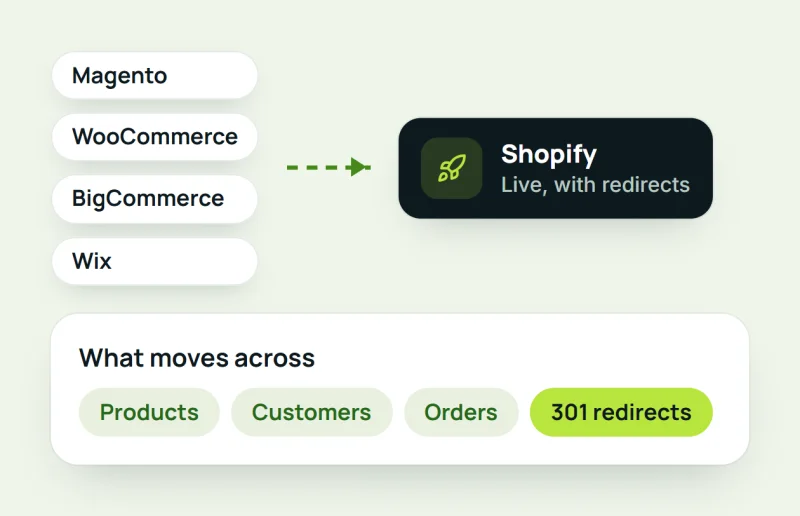
Illustration of a store migration from Magento, WooCommerce, BigCommerce or Wix to Shopify, with data and redirects carried across

Step 1: Audit what you have

  • Catalogue: simple and variable products, attributes, variations, images, stock and pricing rules.
  • Customers and orders: how much history you need, and in what detail.
  • Content: pages, blog posts, media and any custom post types.
  • Plugins: every plugin, what it does and who relies on it.
  • SEO: top landing pages from Search Console and GA4, plus your backlink profile.

Step 2: Map plugins to Shopify features or apps

Many WooCommerce plugins are replaced by Shopify's built-in features, such as discounts, gift cards and abandoned checkout emails. Others need an app: reviews, subscriptions, product filters, bundles or B2B pricing. Choose apps deliberately; moving forty plugins into forty apps simply recreates the old problem on a new platform.

Step 3: Plan the data migration

Variable products become Shopify products with variants, and extra attributes move into metafields. Shopify limits the number of options per product, so check complex variation sets early. Tools such as Shopify's Store Importer or a spreadsheet-based import app can move products, customers and orders, but always run a test import, check it line by line and agree a content freeze before the final run.

Step 4: Redirects and SEO

WooCommerce URLs such as /product/blue-mug/ and /product-category/kitchen/ become /products/blue-mug and /collections/kitchen on Shopify. Map every valuable URL to its closest match, import the redirects in bulk, then carry across page titles, meta descriptions and image alt text from your SEO plugin. Update internal links as well: menus, blog posts and product descriptions that still point to old WordPress addresses should link directly to the new pages rather than relying on redirects.
Laptop showing a website template gallery on a desk

Step 5: Payments, tax and delivery

Set up UK VAT, decide whether prices display including VAT and recreate delivery rates for Royal Mail and couriers. Turn on the payment methods your customers expect, from Shop Pay and PayPal to Klarna or Clearpay where they suit your price points. Check that order confirmation, dispatch and refund emails carry your branding, VAT details and returns address.

Step 6: Train your team

Shopify's admin is simpler than WordPress, but it is still new. Walk your team through orders, refunds, discounts, stock and content editing on the staging store, and write a one-page guide for daily tasks. Customer service staff especially need to know how account sign-in now works, so they can help returning customers confidently in the first weeks.

Step 7: Test, launch and monitor

Test checkout on real phones, place orders with every payment method, crawl the staging store and spot-check redirects before the DNS switch. After launch, watch Search Console daily for a few weeks. Once the store is stable, our hub on AI for Shopify Stores shows how Shopify Magic, Sidekick and AI search can help your team work faster on the new platform.

WooCommerce migration tips from experience

  • Export more than you think you need

    Before you cancel hosting, take a full backup of the WordPress database and files, plus CSV exports of products, customers and orders. Keep them somewhere secure and access-controlled. Months later, someone will ask about an old order, a historic price or a blog image, and you will be glad the original data still exists. Note where the backup lives in your project handover document.

  • Clean data before it moves

    Years of WooCommerce trading leave behind duplicate attributes, unused tags, drafts and products that have not sold in years. Tidy them in the export files rather than on Shopify. A cleaner catalogue imports faster, filters better and gives shoppers fewer dead ends to stumble into. Agree what gets retired with your buying team first.

  • Keep the blog URLs in mind

    WordPress blogs often sit at the root of the domain, with posts at addresses like /my-post-title/. On Shopify they move under /blogs/ with a blog handle, so every post needs a redirect too. Prioritise posts that bring in organic traffic or have earned links from other sites, then work down the list.

  • Lower DNS TTL before launch

    A few days before go-live, ask whoever manages your domain to lower the DNS time-to-live. When you point the domain at Shopify, the change then spreads more quickly, shortening the window where some shoppers see the old site and others see the new one. Raise it again once everything settles.

Help AI assistants find your new storeAI Search Optimisation for Shopify

FAQs

WooCommerce to Shopify FAQs

Straight answers before you get in touch. More in our FAQs.

Can we move our WooCommerce order history to Shopify?

Yes, past orders can be imported so customers see their history and your team can look up previous purchases. Imported orders are historical records, so they can be brought in without sending emails to customers or taking payments. Decide how many years of history you need, because very old orders add import time without always adding much value to the business or its customers.

Will our product reviews come across?

Usually, yes. Reviews stored by WooCommerce or a reviews plugin can be exported and imported into most Shopify review apps, with ratings, dates and reviewer names intact. Check the import format of the app you choose before migration day, and make sure each review is matched to the right product by SKU or handle, so star ratings display on the correct pages.

What happens to our WordPress pages built with a page builder?

Page builder layouts cannot be copied across directly, because Shopify themes work differently. The content itself, such as text, images and FAQs, can be moved, and the layouts are rebuilt using your Shopify theme's sections. It is a good chance to simplify pages that have grown cluttered over the years and to remove outdated content that no longer earns its place.

Do we have to change our domain name?

No. You keep your existing domain and point it at Shopify when you launch. Email hosted with Google Workspace, Microsoft 365 or your domain provider is unaffected, provided only the website records change. Check your DNS settings carefully before the switch, so email keeps flowing and nothing else on the domain breaks during the switch.

Can we run WooCommerce and Shopify side by side during the move?

Yes. Your WooCommerce store keeps trading while Shopify is built on a password-protected store. Shortly before launch, a final import brings across any new orders, customers and stock changes. The DNS switch then sends shoppers to Shopify, and the old site can be kept offline for reference until you are confident nothing is missing from the new store.

How do we handle custom features a developer built for us?

List each custom feature and the business problem it solves. Some can be replaced by Shopify settings or an existing app, others by theme customisation, and a few may need a custom Shopify app. Deciding this early keeps the budget realistic and stops one bespoke feature from delaying the whole migration timeline or inflating its cost.

How long does a WooCommerce migration usually take?

It depends on catalogue size, design scope, integrations and subscriptions. A like-for-like move of a modest catalogue is far quicker than a full redesign with ERP connections. A clear scope and a fixed plan agreed at the start give you a realistic launch date, with milestones you can track every week. We also plan launches away from your busiest trading periods.

What does SAL charge for a WooCommerce to Shopify migration?

Migrations are priced as fixed packages. Starter, from £1,995 ex VAT, suits catalogues of up to 1k products, while Growth, from £3,995 ex VAT, adds capacity for large catalogues and full redirect mapping. Stores with custom plugins, subscriptions or ERP links are scoped as Custom. The price is agreed in writing before work begins, so your budget is settled from day one.

Move from WooCommerce without the stress

Our migration team handles the full move, from plugin audit and data mapping to redirects, design, testing on a password-protected store and post-launch monitoring, all at a fixed price under NDA, with a dedicated project manager, 4-eyes QA on every import batch and weekly progress reports throughout. Prefer to see our process before you commit? Book a live walkthrough on Zoom or Google Meet.

Get a quote Call WhatsApp (opens in new tab)